
Less TODO, more done: The difference between coding agent and agent mode in GitHub Copilot
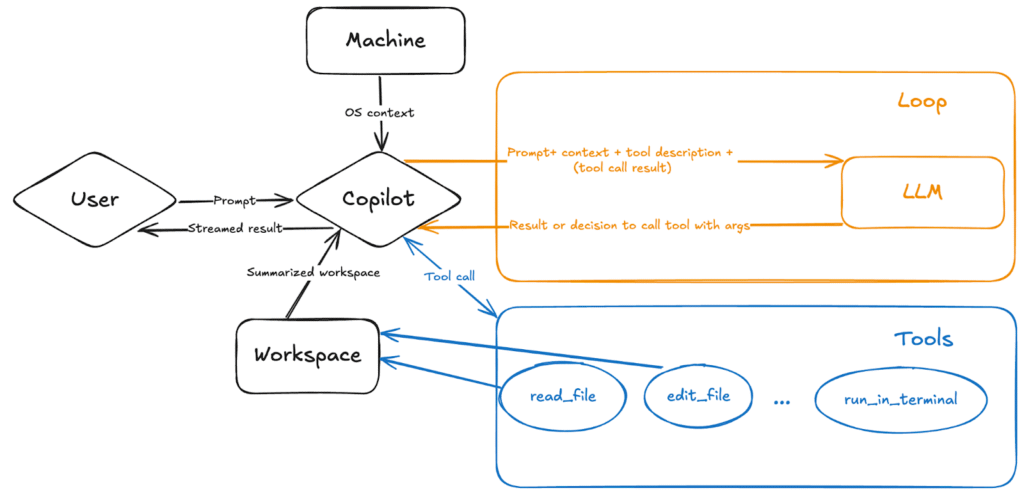
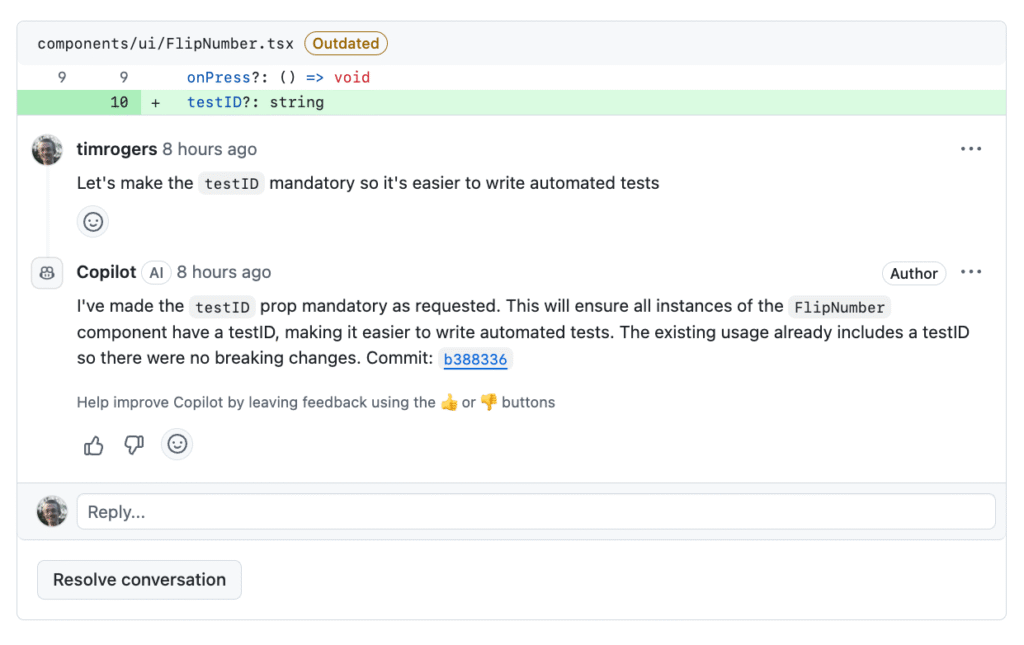
“Give a dev a code completion and they’ll merge once. Teach a dev to wield an AI agent and they’ll empty the backlog before the coffee cools.“ GitHub Copilot started life in 2021 as the autocomplete sidekick that kept you in flow. Fast forward to 2025 and it now has two new and very different superpowers: Agent mode: a real‑time collaborator that sits in your editor, works with you, and edits files based on your needs. Coding agent: an asynchronous teammate that lives in the cloud, takes on issues, and sends you fully tested pull requests while you do other things. While they’re both AI agents, they’re tuned for different parts in your day-to-day workflows. Since we’ve been getting a few questions, we’re breaking down what they are, when to reach for each, and—because we’re developers—offering some hands‑on tips. TL;DR: The difference between agent mode and coding agent Agent mode = synchronous: Works inside VS Code (and now JetBrains/Eclipse/Xcode previews) as an autonomous collaborator that iterates on code, runs tests, and fixes its own mistakes in real time. Coding agent = asynchronous: Runs inside GitHub Actions (in public preview), picks up issues you assign (assignee: Copilot), explores the repo, writes code, passes tests, and opens a pull request for your review. Think of agent mode as the senior dev pair programming with you, and coding agent as the diligent teammate grinding through well‑scoped tickets. You can (and should) use both together: Prototype interactively in agent mode, then give follow‑up tasks to the coding agent. Note: Both consume Copilot premium requests, but coding agent also uses Actions minutes. Meet agent mode: Your real‑time collaborator Agent mode transforms Copilot Chat into an orchestrator of tools (read_file, edit_file, run_in_terminal, etc.). Give it a natural‑language goal—“add OAuth to our Flask app and write tests”—and it plans, edits files, runs the test suite, reads failures, fixes them, and loops until green. You watch the steps, intervene when you like, and keep all changes local. How to turn agent mode on Open Copilot Chat in VS Code. Select Agent from the mode dropdown. (Optional but smart) Click Tools → Manage to enable or disable capabilities and add MCP extensions. Pro tips for using agent mode to the fullest extent Scope the outcome: “Generate a REST endpoint” beats “help?” Vagueness breeds hallucination, so be as clear as possible about what you want. Seed with context: Point it at the spec file or paste the schema so it doesn’t reinvent shapes. Iterate interactively: Let it run, but nudge when it veers—like pair programming with a skilled teammate who’s fast but needs occasional direction. Extend with MCP servers: If you need custom tools (database migrations, cloud deploys, etc.). Choose your model: OpenAI GPT‑4o for raw power, Anthropic Claude for longer context—swap via the model picker. TLDR: Agent mode is like pair programming with a pro who writes code, runs tests, and fixes errors instantly, all within your editor. Meet your coding agent: Your asynchronous teammate Where agent mode lives in the IDE, coding agent lives in your repos. Assign an issue to Copilot, and it spins up a secure cloud workspace (via GitHub Actions), figures out a plan, edits code on its own branch, runs your tests/linters, and opens a pull request tagging you for review. How to enable it Plan eligibility: Requires Copilot Pro+ or Copilot Enterprise. Flip the switch: Enterprise admins must enable “Copilot coding agent” in organization policies. Assign issues: Prompt coding agent with natural language by pointing it at an issue to get started. ### Feature: add dark‑mode toggle assignees: Copilot Watch the pull requests roll in—quick turnarounds for small tasks, thorough work on the complex ones. Sweet‑spot tasks Low‑to‑medium complexity changes in well‑tested repositories. Adding or extending unit tests. Small refactors (rename a service, extract helpers). Documentation or typo fixes. Not yet ideal for: massive rewrites, cross‑repo changes, codebases with 0% test coverage. Pro tips for using coding agent in GitHub Copilot Write crisp acceptance criteria in the issue. The agent reads them like a spec. Link to files or functions the change touches; saves exploration time. Keep it atomic: one logical task per issue. Multiple smaller issues scale better than one behemoth. Leverage PR comments: Ask the agent for tweaks, then you can extract the logic into a separate function and add error handling. Mind your minutes: Heavy tasks consume Actions minutes and premium requests, so queue strategically. And remember: GitHub Copilot coding agent follows your existing code style without complaints… yet. Side by side: Picking the right tool Decision lens Agent mode Coding agent Workflow pacing Real‑time collaboration, conversational, and iterative Fire and forget, background tasks Interface VS Code / JetBrains / Eclipse / Xcode chat GitHub Issues or Copilot Chat → Monitored via pull requests Typical tasks Refactor, prototype, debug, migrate Feature add, bug fix, extending tests, boring tasks and repetitive engineering chores Human oversight Continuous (you watch edits) At pull request review checkpoint Resource cost Premium requests Premium requests + Actions minutes Best for Exploring unknown code, tight feedback loops Clearing backlog, parallelizing chores Get more done by using both Before we dive into the tactical playbook, remember that Copilot’s superpowers aren’t either/or—they’re peanut butter and jelly. The magic really shows up when the real‑time, in‑editor agent mode meets the steady, background hustle of the coding agent. With that, here are three proven pairings that let you wring every drop of productivity (and fun) out of both: Prototype in agent mode. Ship with coding agent. Use agent mode to spike a working feature branch. Open an issue describing polish tasks; assign to Copilot. Agent mode for spec generation. Coding agent for implementation. Ask agent mode to draft a design doc from code context. Fine‑tune it, then hand the ticket to coding agent to execute. Coding agent regression fix. Agent mode hot patch. If coding agent’s pull request introduces a build failure, open the branch locally and summon agent mode to diagnose and patch instantly. These aren’t the only areas where you can use agent mode and coding agent